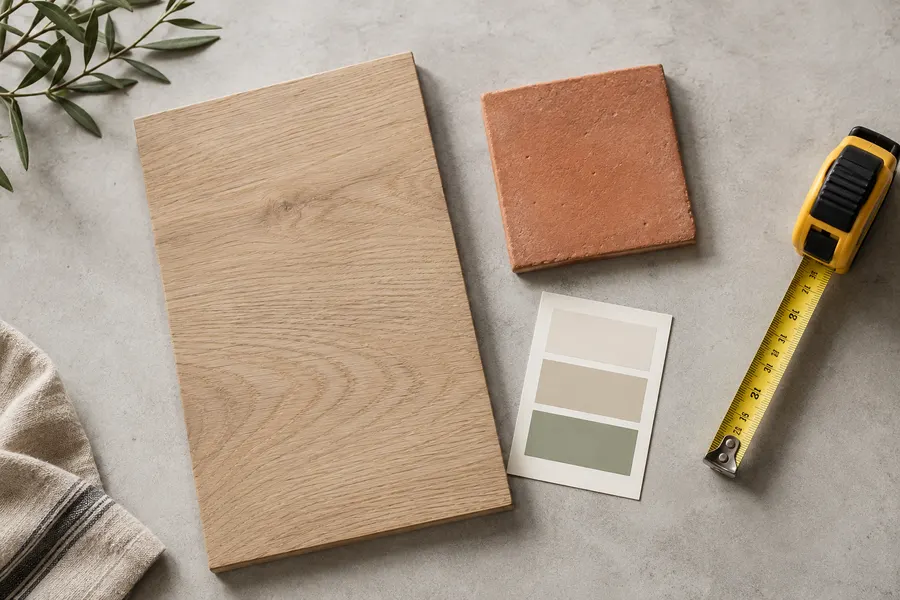
Project material calculator: from measurements to a buying plan
A project material calculator turns your measurements and selected product data into a buying quantity. Calculate the raw area or volume, add the waste allowance you choose, divide by the coverage of a real purchase unit, and round upward. A useful plan also shows excess quantity, preserves assumptions and combines matching materials across rooms.
My Material Plan is built around that complete workflow. The number at the end is a purchase planning estimate based on the values you entered. It is not a building specification, an installation design or a guarantee that every leftover piece will be useful.
Build a reliable measurement record
Start with the surface, not a generic room name
A room contains several material surfaces. Its floor, walls and ceiling do not share one area value, and they may use different products. Begin by naming the exact surface: kitchen floor, hallway east wall, bedroom ceiling or front decorative bed.
This simple distinction prevents a common planning error. A room's floor area may be a perfectly accurate number, but entering it as painted wall area answers the wrong question. A good calculator can multiply the number correctly while the underlying record still describes the wrong surface.
Separate records also make revisions easier. If a window measurement changes, you can edit the wall containing it.
If the kitchen flooring product changes, the paint records remain intact. The combined list can later bring compatible purchases together without erasing their original measurements.
Use labels that you will understand at the shop, not temporary labels that only make sense while you are entering the data. A printed list should still explain which surfaces contributed to a product quantity.
Calculate rectangles and keep a sketch
For a rectangular area, multiply measured length by measured width. A hypothetical 12-by-10-foot floor is 120 square feet. This is an area result, not yet a package count and not an allowance-adjusted quantity.
A sketch helps connect the two dimensions with the actual outline. Label the sides and write the unit beside the values.
For an L-shaped space, divide the outline into non-overlapping rectangles and label each one. Add their areas only after confirming that no section appears twice.
Do not use a large bounding rectangle without accounting for the missing part of an irregular outline. Conversely, do not subtract a missing part after measuring sections that already exclude it. Both mistakes can look reasonable when the sketch is absent.
The square footage calculator guide explains these measurement checks and how to keep sections traceable in a multi-room project. Use it to check decimal feet and square-unit conversions before transferring the measurements into the project material calculator.
Rectangle area = length × width
Combined area = section A + section B + other non-overlapping sections
Net area = measured gross area − explicitly excluded area
| Dimension | Example |
|---|---|
| Length | 12 ft |
| Width | 10 ft |
| Gross area | 120 ft² |
Treat units as part of every value
A measurement is incomplete without its unit. Twelve feet and twelve metres produce very different areas. Likewise, square feet and cubic feet describe different dimensions even though the words sound similar.
The planner separates measurement units from package coverage units. You can measure a room in feet while reading a flooring box in square metres. Select the unit actually attached to each number and the calculation converts them to a common basis.
Decimal feet need particular care. Six feet six inches is 6.5 feet because six inches is half a foot.
It is not 6.6 feet. If your notes use feet and inches, convert the inch portion by dividing by twelve before entering the decimal value.
Changing the measurement unit in the project material calculator converts the existing dimensions rather than treating the same digits as a different physical size. Product region remains a separate choice; selecting a country does not change the room you measured.
Use squared and cubed conversion factors
Length conversions cannot be applied unchanged to area or volume. One foot is exactly 0.3048 metres, so one square foot is 0.09290304 square metres. One cubic foot is 0.028316846592 cubic metres.
A square yard is nine square feet because both dimensions are three feet. A cubic yard is twenty-seven cubic feet because length, width and depth each contribute that factor. Remembering the dimensions is safer than memorizing a number without its meaning.
| From | To | Multiply by |
|---|---|---|
| Feet | Metres | 0.3048 |
| Square feet | Square metres | 0.09290304 |
| Cubic feet | Cubic metres | 0.028316846592 |
| Cubic yards | Cubic feet | 27 |
| Litres | Cubic metres | 0.001 |
Keep working precision through the calculation, then round the display for readability. The whole-package result should be based on the working quantity rather than a prematurely rounded area.
Subtract openings once, from the correct surface
A measured door or window can reduce the area receiving a selected coating. Calculate the opening's width multiplied by height and subtract it from the wall containing it. Multiple openings can be added into one excluded-area value for that wall.
Do not subtract an opening from a surface that already excludes it. If you measured only the wall strips beside a doorway, the doorway was never part of those strips. Subtracting it again creates an artificially small net area.
Trim, frames and reveals may be separate surfaces using another product. The project material calculator does not infer them from an opening rectangle. Measure and label them separately if they belong to your selected project.
Opening treatment also depends on material geometry. Wallpaper and carpet can require full cuts around an excluded area. The doors and windows subtraction guide explains when an area subtraction is useful and when it cannot represent the actual purchase.
| Hypothetical wall | Area |
|---|---|
| 4 m × 3 m | 12 m² gross |
| Door: 0.9 m × 2 m | 1.8 m² excluded |
| Net selected surface | 10.2 m² |
Keep measurement uncertainty visible
A result with three decimal places is not proof that the measured surface is known that precisely. The software can preserve arithmetic precision while the original dimensions remain approximate.
If a result looks surprising, compare the inputs with the physical measurement record. Repeating the same multiplication will not reveal that a width was copied from another room. Check surface identity, units, overlap and exclusions before questioning the final package count.
Do not enlarge dimensions to hide extra material. Keep raw measurements separate from your chosen allowance. Increasing both length and width by a percentage compounds the area change and can create more extra quantity than intended.
A clear measurement record is the foundation of the project material calculator's transparency. It lets you explain a result in terms of observed dimensions and explicit choices rather than treating the calculator as an unexplained answer.
Connect measurements to the actual product
Package coverage is the bridge to a purchase
Measured area tells you how much surface exists. Package coverage tells you how much nominal area or volume one purchase unit represents. Dividing the adjusted project quantity by that package value connects the measurement to something you can buy.
For flooring, that unit might be a box or pack. For decorative material it might be a bag.
For sheet goods it may be a sheet or bundle. The exact sale format matters because each creates different rounding boundaries.
A hypothetical 100-square-foot plan with a 20-square-foot box requires five boxes before any further change. The same plan with a 24-square-foot box rounds to five boxes but purchases 120 square feet of nominal coverage. Equal counts can represent different quantities.
The package coverage guide explains how to identify the exact value and distinguish it from piece dimensions or a displayed price unit. Keep that value attached to its sale unit when entering it, particularly when a listing shows both piece and pack information.
| Copy | Purpose |
|---|---|
| Product reference and region | Identify exact format |
| Coverage value and unit | Normalize the quantity |
| Sale unit and source | Explain the whole-package result |
Product names do not define a universal package
A collection name can include several sizes, finishes and regional formats. A plank or tile dimension can describe one piece without telling you how many pieces are in the box. A product photo may show a package variant different from the one selected on the page.
Read the exact reference and package field together. Include enough detail in your project identifier to distinguish non-interchangeable material: product code, colour, format and any relevant batch reference.
When you change a product, update coverage and unit along with its name. A record containing a new product name and an old package value can produce a plausible result that is hard to detect from the integer count alone.
The project material calculator does not infer that similarly named products are equivalent. Its grouping follows the identities and supported package data you provide.
Distinguish verified records from user-entered labels
A verified catalog record contains a specific product, material, region, coverage value, unit, source and verification date. It is a documented package fact rather than a generic example wearing a brand name.
When no verified record matches, the planner asks you to enter the current label. That value remains user-entered and is not assigned a false verification date. This keeps the tool useful while making the evidence level clear.
The current catalog is deliberately small. It includes a UK laminate package and a US mulch bag, with their sources shown in the project material calculator.
Other supported materials remain available through explicit label entry. Supporting a material category is not the same as claiming a complete manufacturer catalog.
Before buying, recheck even a verified record against the current package. Verification records when a fact was checked; it does not guarantee unchanged packaging, local inventory or suitability for a project.
Use primary sources for manufacturer facts
The preferred source is the official manufacturer's product page or technical sheet for the exact variant. An official coverage tool can also support a fact when its assumptions are clear. Retailer information is a fallback for a necessary regional SKU or package detail that the manufacturer does not provide.
For example, the official Quick-Step Cardamom oak IMD8242 page lists 1.201 square metres per pack. That figure belongs to the cited UK product record; it is not a generic laminate box size.
The official Scotts Nature Scapes Classic Black page identifies a 2-cubic-foot bag variant. The record concerns package volume, not a depth recommendation. Both package facts were checked on 9 September 2026.
Source links let you inspect the basis of a calculation instead of relying on an unsupported claim of authority. If the source no longer matches the selected package, update the record before relying on a previously printed quantity.
Keep market and measurement choices independent
My Material Plan supports the United States, Canada, United Kingdom, Australia, New Zealand and Ireland as product regions. Region selection filters verified package records. It does not create six copies of the same calculator or claim that a package exists in every market.
Feet and metres are available independently because users may measure in one system while buying a package labelled in another. A region choice should not silently reinterpret dimensions or force a unit conversion that changes the physical project.
When regional data genuinely differs, it belongs in the product record and its source. A separate page is useful only when the content or calculation meaningfully differs. Merely swapping a country name adds no purchasing information.
If the selected market has no verified package for the material, the project material calculator says so. Entering the current label is more reliable than borrowing an unverified format from another country.
Do not confuse mass, volume and area
Decorative materials are sometimes sold by mass while the project calculation produces volume. A bag marked in kilograms cannot be entered as litres. Converting mass to volume requires a supported density or product yield.
The planner deliberately avoids hidden density assumptions for sand and gravel. If the exact package has no supported volume yield, obtain that fact from the manufacturer or supplier. Adding a large waste percentage does not repair an unsupported unit conversion.
Paint has another distinction: a coverage rate per litre or gallon must correspond to the physical can you selected. The paint field asks for one-coat coverage of that can, so the can size and coverage basis stay connected.
Roll materials need their own dimensional treatment. Width, usable cut length and repeat can matter more than nominal area, as the following material methods explain.
| Hypothetical input | Quantity |
|---|---|
| 2 m × 3 m area | 6 m² |
| Entered depth: 5 cm | 0.3 m³ |
| Entered bag yield: 15 L | 20 bags at zero allowance |
Choose the method that matches the material
Paint: surface area becomes coat-area
A paint buying plan starts with the surfaces to be coated, subtracts measured exclusions, and multiplies by the coat count you specify. The result is coat-area: the surface counted once for each application.
Divide that quantity by coverage for one selected can for one coat. Apply your explicit allowance and round to whole cans. The project material calculator does not infer coat count from a colour change or a product description.
A manufacturer's coverage range should stay visible as a range. The official BEHR PREMIUM PLUS Interior page, for example, lists 250–400 square feet per gallon.
Enter both endpoints in the paint planner. It uses the lower coverage endpoint for conservative whole-can rounding and preserves the stated range with your estimate. The range remains user-entered unless it belongs to a separately verified catalog record.
The paint calculator guide shows a full example and explains why displayed excess coverage is not a promise of an exact liquid volume left in the can. Compare the can basis and coat count before interpreting a change in the number of cans.
| Stage | Illustrative quantity |
|---|---|
| Wall: 14 ft × 8 ft | 112 ft² |
| Exclude 21 ft² opening | 91 ft² |
| Two entered coats | 182 ft² of coat-area |
Tile: use actual box coverage
Tile purchases begin with measured floor or wall area, but the buying count depends on the exact box format. Piece dimensions and a price per square foot do not establish the coverage of the box you must purchase.
Enter your selected allowance separately from the raw surface. Divide adjusted area by box coverage and round upward. Keep different colours, feature tiles and non-interchangeable formats as separate products.
An area model does not optimize the layout or prove that every offcut can be reused. A small edge section may consume parts of several full pieces. The allowance is an explicit purchasing choice, not a hidden layout calculation.
The tile calculator guide covers measurement, box rounding and product identity. Grout and adhesive quantities are intentionally outside this version.
| Stage | Hypothetical quantity |
|---|---|
| Raw floor | 120 ft² |
| Chosen 10% allowance | 132 ft² |
| 20 ft² per box | 7 boxes; 140 ft² purchased |
Vinyl and LVT: preserve the selected format
Boxed vinyl tiles and planks use the area-to-package method. Read the coverage of the selected carton rather than assuming a universal box size from the material name.
A vinyl product sold as a broad sheet roll presents a different cutting problem. Nominal roll area alone cannot establish how room shapes fit across its width. This version's vinyl/LVT workflow is intended for stated package coverage; it does not invent a sheet-roll cutting schedule.
When several rooms share the same interchangeable boxes, their adjusted areas can be combined before rounding. Keep product references and formats precise so a kitchen and utility room share material only when you intend them to. Read the vinyl flooring calculator guide for a worked box example and the distinction between a smaller box count and a smaller purchased quantity.
| Format | Model |
|---|---|
| Tiles or planks with stated carton area | Area-to-box quantity |
| Broad sheet roll | Needs cutting geometry beyond this vinyl model |
| Nominal plank size only | Not enough to establish carton coverage |
Laminate: read the pack before calculating
Laminate packs can differ across product references and markets. The exact coverage field is the purchasing input; board dimensions can help cross-check the format but do not replace the stated pack coverage.
The verified UK example in the project material calculator is specific to Quick-Step IMD8242. Choosing it does not select a waste allowance, layout or installation specification. Its source and date document the package fact only.
For other products, enter the current label. If you change to a larger pack, the count may fall while purchased coverage or rounding excess rises. Compare all result fields rather than judging efficiency by package count alone.
The laminate flooring calculator guide explains the cited package example and how compatible rooms can share a purchase. Retain the exact variant when comparing packs; the same collection name alone does not establish interchangeable coverage.
| Value | Status |
|---|---|
| Quick-Step IMD8242: 1.201 m² per pack | Cited UK manufacturer fact |
| 14 planks per pack | Same cited reference |
| Any example waste percentage | User choice; not a catalog default |
Wallpaper calculator: count full drops
Wallpaper needs enough complete strips to span the wall and enough length in each strip to cover its height with your specified trim and supported pattern repeat. A roll's total area cannot guarantee that it yields the necessary full-height drops.
The planner counts drops across wall width by rounding upward. It counts complete drops along the roll by rounding downward. For straight-match patterns, it rounds the cut length to complete repeats; free-match uses a repeat of zero.
Openings remain within full drops in this model. Half-drop and complex patterns require a supplier cutting schedule. The project material calculator does not assume that every short offcut can cover another location.
The wallpaper roll calculator guide explains this method and why additional waste comes after the cutting calculation already accounts for trim and repeat. A small increase in cut length can reduce the number of complete drops available from each roll.
| Entered geometry | Calculated result |
|---|---|
| Wall width 4 m; roll width 0.5 m | 8 drops |
| Height 2.4 m; total trim 0.2 m | 2.6 m before repeat |
| Repeat 0.4 m | 2.8 m cut length |
Drywall and plasterboard: quantity after selection
The sheet calculator divides your measured net area and selected allowance by the coverage of the sheet or bundle you already chose. It does not select thickness, ratings, spacing or a construction system.
Pay attention to the sale unit. A sheet's face area and a bundle's total coverage can differ by the number of sheets supplied. Record the actual unit you intend to buy rather than assuming the package contains one sheet.
Area division is not a sheet-by-sheet cutting layout. Openings and narrow sections can affect how physical sheets are consumed. Use your existing layout to check the purchase estimate without treating the software as an installation designer.
The drywall calculator guide explains these boundaries and keeps sheet quantity separate from unrequested system components. A sheet-by-sheet cutting plan remains a separate check on how nominal area translates into physical pieces.
| Selected sale unit | Coverage entry |
|---|---|
| Single sheet | Its face area |
| Two-sheet bundle | Total bundle face area |
| Unknown sheet count | Confirm before entering coverage |
Mulch: convert your chosen depth to bags
Mulch quantity uses measured decorative area multiplied by the depth you enter. Convert depth into the same linear unit before multiplication, then compare the resulting volume with the selected bag's volume.
The calculator does not recommend a depth or add a hidden settling factor. The verified US bag record provides a specific package volume. Your project dimensions, chosen depth and allowance remain separate user inputs.
Multiple beds can share matching bags while retaining their individual depths in the saved records. There is no need to average depth if each section's volume is calculated first. Read the mulch calculator guide for an example that separates raw volume, chosen extra quantity, whole bags and rounding excess.
| Entered dimensions | Volume |
|---|---|
| Bed: 6 ft × 4 ft | 24 ft² |
| User-selected depth: 2 in | 1/6 ft |
| Area × depth | 4 ft³ |
Decorative sand and gravel: avoid guessed density
Both decorative sand and decorative gravel use a volume model in this version. You supply the selected depth and a supported volume per purchase unit. The project material calculator does not choose a structural base or a drainage design.
A mass-only package needs a supported conversion or stated yield before it can be used. The planner does not silently choose a generic kilograms-per-cubic-metre value to fill that gap.
Keep colours, grades and suppliers distinct when they represent non-interchangeable products. Matching bag size alone is not enough to combine them. A shared project can contain several decorative products without treating them as one volume pool.
The sand calculator guide and gravel calculator guide explain package yields, unit boundaries and purchase rounding within the decorative scope. Check that a yield belongs to the selected decorative product before using it in either volume calculation.
| User-entered value | Calculation |
|---|---|
| Area: 5 m × 2 m | 10 m² |
| Chosen depth: 0.04 m | 0.4 m³ raw volume |
| Hypothetical 0.02 m³ bags | 20 bags at zero allowance |
Pavers: surface material only
Paver quantity uses the stated coverage of the selected piece, pack or pallet. A mixed-size package may have a coverage basis tied to its format; the project material calculator does not infer that basis from a single nominal piece size.
Keep borders and different colours separate unless your selected layout provides an explicit allocation. The main surface area cannot determine every design component automatically.
The planner does not calculate excavation, bedding, structural base, slope or drainage requirements. A surface-material quantity is not evidence that a supporting system has been designed. The paver calculator guide shows how different sale units can produce different excess coverage for the same measured surface.
| Hypothetical input | Result |
|---|---|
| Net surface | 18 m² |
| Chosen 10% allowance | 19.8 m² |
| 1.5 m² selected pack | 14 packs; 21 m² purchased |
Sod and turf: one intent, actual local format
Sod and turf are addressed together because the core purchasing question is the same: how many selected rolls, pieces or pallets cover the measured area after your chosen allowance? The package coverage must come from the actual supplier format. The project material calculator does not assume every roll has one standard size or that a pallet contains a universal number of rolls.
Separate measured lawn sections can share a compatible purchase group. Different products remain distinct even when their package coverage matches. Rounding excess is nominal area, not a guarantee of usable turf remaining after cuts.
Read the sod calculator and turf calculator guide for an example and a review of roll versus pallet sale units. Changing the sale unit changes the number being ordered, so compare total represented coverage as well as the integer count.
| Term | Quantity basis |
|---|---|
| Sod | Measured surface ÷ selected coverage |
| Turf | Same area-to-package method |
| Roll or pallet | Use actual supplier format |
Carpet: roll width changes the buying length
A rectangular carpet estimate needs roll width and your chosen run direction. Count complete runs across the room, multiply by the along-roll dimension, then apply your additional allowance and round to the supplier's sale-length increment.
Two rooms with the same floor area can require different linear quantities because their dimensions fit differently across a fixed roll width. Changing direction can change the arithmetic, but the project material calculator does not recommend a seam or layout.
Patterned carpet, stairs and complex shapes need a supplier cutting schedule. Saved room cuts remain separate rather than being combined by nominal area as if they could always be nested perfectly. The carpet calculator guide walks through run counting and explains why linear excess is not a full description of width offcuts.
| Room: 5 m × 4 m; roll: 3 m | Raw length |
|---|---|
| Runs along 5 m | ceil(4 ÷ 3) × 5 = 10 m |
| Runs along 4 m | ceil(5 ÷ 3) × 4 = 8 m |
| Chosen direction | A user input, not a seam recommendation |
Carpet tile: keep colour allocations explicit
Modular carpet sold in boxes uses area coverage rather than broadloom roll geometry. Read the exact box coverage and keep the product reference attached to each measured area.
If a selected design contains several colours, derive each product's allocation from your own layout. The total room area does not tell the project material calculator which proportion belongs to each colour.
Combine only interchangeable boxes across rooms. Area-equivalent excess does not promise a count of intact spare modules or optimize edge cuts. The carpet tile calculator guide explains the modular purchase workflow and its distinction from roll carpet.
| Material | Method |
|---|---|
| Carpet tile boxes | Area ÷ actual box coverage |
| Broadloom carpet | Runs × along-roll dimension |
| Equal floor area | Does not imply equal purchase geometry |
Understand allowances, whole packages and leftovers
Your allowance is a visible purchasing choice
The waste field is deliberately blank until you choose a value. Entering zero is a valid explicit choice; leaving it blank means the plan is incomplete. The software does not silently assign a percentage based on a material name.
Multiply raw quantity by one plus the chosen percentage divided by one hundred. Keep the result separate from the raw measurement. That separation lets you revise the allowance without pretending that the physical room changed.
If your starting quantity already includes a supplier cutting allowance, check before adding another percentage. Wallpaper and carpet methods also contain some cutting effects in their raw quantity, so the additional field should not unknowingly duplicate them. The material waste allowance guide explains comparisons and why a percentage cannot repair missing package facts.
| Raw 100 m²; 20 m² packs | Purchase |
|---|---|
| 0%: 100 m² adjusted | 5 packs |
| 10%: 110 m² adjusted | 6 packs |
| 25%: 125 m² adjusted | 7 packs |
Round upward to the selected sale unit
After allowance, divide by the quantity represented by one actual purchase unit. If the result is fractional and the product must be bought whole, round upward. At an exact boundary, no additional package is needed.
A hypothetical adjusted plan of 102 square feet with 20-square-foot boxes needs six whole boxes, not five. The sixth box is a consequence of the sale format. It does not mean the surface itself contains 120 square feet.
Package counts move in steps. A small input change may not alter the count, or it may add a whole package if the adjusted quantity crosses a boundary. Review raw and adjusted values to understand that change.
The tile box calculator and flooring box calculator guide provides worked examples of those thresholds. Use their boundary checks when a small change in measured area increases the order by one whole box.
| Example | Meaning |
|---|---|
| 100 m² | Raw measured area |
| 110 m² | After a chosen 10% allowance |
| 120 m² | Six hypothetical 20 m² packages |
Read two excess quantities, not one vague leftover
Purchased quantity minus adjusted quantity is rounding excess. Purchased quantity minus raw quantity is the amount above the measured starting point, including your allowance.
Suppose raw area is 100 square feet, your allowance creates 110, and whole packages provide 120. Rounding excess is 10 square feet. The amount above raw is 20, but half of it was already allocated as your chosen extra quantity.
Neither value proves that intact material remains after use. Cuts and application consume material in ways a scalar quantity cannot fully describe. An offcut with a particular area may not fit another location.
The project material calculator therefore keeps the allowance and rounding visible instead of presenting all excess as guaranteed reusable spares. Keep any separate decision to buy intact repair pieces visible in your purchasing notes.
| Quantity | Value |
|---|---|
| Raw surface | 100 ft² |
| Adjusted plan | 110 ft² |
| Purchased coverage | 120 ft² |
| Rounding excess | 10 ft² |
| Above raw, including allowance | 20 ft² |
Bring rooms into one shopping list
Preserve rooms while combining compatible purchases
A multi-room project needs both detailed records and a concise buying list. Save each room or surface separately so its dimensions, exclusions and allowance remain editable. Then combine matching package quantities for shopping.
The combined list adds adjusted quantities for compatible products before rounding. This avoids creating a separate fractional-package remainder for every small room when you intend the same material to serve them all.
Matching requires more than a similar name. Material, region, product identifier, coverage, package format and source all contribute to the group. Use different identifiers when products are not interchangeable.
The multi-room flooring guide and combined material shopping list guide explain how that grouping works. Check the exact product identity before sharing package remainders between rooms.
| Illustrative room | Adjusted area |
|---|---|
| Kitchen | 21 m² |
| Hall | 9 m² |
| Shared 3 m² packs | 10 packs for 30 m² |
Keep unlike quantities on separate lines
A shopping list can contain cans, boxes, sheets and bags together without adding them into a misleading grand material total. Area, volume, drops and linear length are different dimensions.
Even two area-based materials should remain separate when they are different products. Twenty square metres of tile cannot replace twenty square metres of laminate simply because the numbers share a unit.
The useful final question is what each product is and how many of its purchase units are needed. The list preserves that answer, along with raw and adjusted quantities for review.
No live prices or inventory are included. The output is a quantity plan rather than a quote, order or guarantee that a retailer can supply it.
| Example line | Buying unit |
|---|---|
| Tile | Boxes |
| Paint | Cans |
| Decorative mulch | Bags |
| Carpet | Sale-length increments |
Use browser-local saving deliberately
When you add a material to the project, the application saves its inputs in this browser's local storage. This supports returning to the list without creating an account or sending measurements to an application database.
Local storage is not a cross-device backup. Another browser, device or site origin has a different storage context. Private browsing, clearing site data or storage limits can remove or prevent the saved record.
Print a copy before depending on the list away from this browser. Avoid putting personal addresses or sensitive information into room labels, especially on a shared browser profile.
The privacy policy describes the current storage and contact-message handling. Removing the last saved area clears the application's project storage key.
Edit rather than duplicate a changed area
If a room measurement changes, use its saved-area edit action. Adding a second copy while leaving the original would count the same surface twice. The room label makes the intended record easier to find.
After changing a product, review its name, coverage unit, value and region together. A new product name paired with an old package coverage can leave an inconsistent record.
Check the combined list after saving an edit. Grouping and rounding may change even when only one area's details changed. A split group can be a useful signal that records no longer describe the same purchase.
Keep the final printed list aligned with the latest saved state. An earlier printout does not update itself when you revise the browser project.
Review the plan before buying
Check the chain from measurement to package
Review in a consistent order: surface identity, dimensions, units, excluded area, material-specific inputs, allowance, package coverage and whole-unit rounding. This order makes it easier to find where an unexpected result begins.
Do not compare only the final integer. A count can remain unchanged while the adjusted quantity rises within the same package boundary.
A small change near a threshold can add a whole package. Both outcomes may be correct.
Verify current package information at purchase time, including the exact variant and sale unit. A manufacturer's historical verification date is useful provenance but not a substitute for checking the current label. Keep the source and assumptions with the printed list so the quantity remains explainable when you are away from the project material calculator.
Know what this version excludes
My Material Plan calculates material purchase quantities only. It does not choose structural thickness, spacing, beam sizes, spans, foundations, reinforcement, load capacities or structural bases. It does not size electrical, gas, plumbing or HVAC systems.
It does not provide code compliance, permit advice or a determination that a structure is safe. Roofing systems, excavation design, trenches, shoring, slopes, drainage-system design and hazardous-material treatment are outside the supported tools.
Grout, tile adhesive, concrete, decking, insulation and fencing calculators are also excluded from this version. They are not added merely because a keyword has search demand.
These boundaries are enforced through the available inputs and calculation paths. A disclaimer alone would not be enough if the project material calculator still generated the excluded specifications.
Use the list as a purchase plan, not a guarantee
The strongest result is a clear, checkable chain from your measurements to your chosen package. It shows what was assumed, what was sourced and how the quantity was rounded.
It does not guarantee exact consumption, reusable leftovers, current stock or an installation outcome. Those questions involve facts beyond the arithmetic model. Keeping them separate makes the quantity estimate more useful, not less.
If you find an error, the most helpful report identifies the material selected in the project material calculator and includes entered values, units, package reference and displayed result. Contact appsdevacademy@gmail.com without including unnecessary personal information. Return to the material purchasing planner to begin a surface, or use the guides above to resolve a measurement or package question first.
A worked project: one home, several buying units
Define the example without turning it into a recommendation
Consider a hypothetical project with a small tiled floor, two painted walls and a decorative mulch bed. The purpose of the example is to show how one workspace can preserve several calculation methods. Its dimensions, allowances and unsourced package values are illustrative.
The tiled floor is 12 by 10 feet with no excluded area. The painted walls each measure 10 by 8 feet; one has a measured 21-square-foot opening. The decorative bed is 6 by 4 feet, with an example depth of 2 inches that the hypothetical user has already chosen.
Each surface receives its own record. This prevents the floor area from being used as wall area and keeps the opening attached to the correct wall. The material list combines the two matching paint entries but does not add paint coverage to tile area or mulch volume.
The resulting project can be printed together even though it contains different units. A useful shopping list organizes unlike purchases; it does not force them into one meaningless grand quantity.
Follow the floor record through the calculation
The example floor has 120 square feet of raw area. With an illustrative user-selected 10% allowance, the adjusted plan is 132 square feet. A hypothetical tile box covering 20 square feet produces a count of seven whole boxes.
Seven boxes represent 140 square feet of nominal coverage. Rounding excess is 8 square feet above the adjusted plan. Purchased coverage is 20 square feet above raw area, including the selected allowance.
The printed line should retain the product identifier, box coverage and room label. If the user later selects a box covering 18 square feet, that is a product change requiring a recalculation, not merely a new label on the old result.
The tile layout is not determined by these numbers. They describe the quantity relationship between measured area, selected allowance and package format. Actual cuts remain outside this area model.
Follow the two paint records separately
The first wall has 80 square feet of measured area. The second has the same gross area but a 21-square-foot opening, leaving 59. Combined net wall area is 139 square feet, but the saved records still explain where that total came from.
If the hypothetical user specifies two coats for each wall, their raw coat-areas are 160 and 118 square feet. With an illustrative 5% allowance for both, adjusted coat-area totals 291.9 square feet.
A hypothetical selected can covering 300 square feet for one coat would produce one whole-can purchase for the shared group. Rounding each wall independently would also produce one can for each wall, or two cans total. The combined count assumes the exact paint and can format can serve both surfaces.
This example shows why preserving room records and combining purchases are complementary. The wall measurements remain separate while the material can be purchased as one shared quantity.
Follow the decorative volume record
The example bed has 24 square feet of area. A user-entered depth of 2 inches converts to one-sixth of a foot, giving 4 cubic feet of raw volume. With an illustrative zero additional allowance, adjusted volume remains 4 cubic feet.
If the selected bag represents 2 cubic feet, the buying count is exactly two bags. There is no rounding excess in this particular example. A zero remainder is possible when adjusted quantity lands on a complete-package boundary.
The depth was supplied by the hypothetical user; the project material calculator did not recommend it. The bag volume must still match the selected product and region. No structural base or drainage calculation is implied.
On the combined shopping list, this material remains a volume-based line alongside the area-based tile and coat-area-based paint. The different units make the purchase information clearer.
Review the combined example as a shopper
| Material | Adjusted quantity | Example package coverage | Buy |
|---|---|---|---|
| Tile | 132 ft² | 20 ft² per box | 7 boxes |
| Paint, two matching walls | 291.9 ft² of coat-area | 300 ft² per can | 1 can |
| Decorative mulch | 4 ft³ | 2 ft³ per bag | 2 bags |
The table is not a real product order. It demonstrates why there is no single meaningful total across the three raw quantities. The useful output is the purchase count for each identified material.
A final check compares each line with its input records. Does the tile coverage belong to the selected box?
Do the paint entries really share a colour and can format? Does the bag volume match the current package? Those questions protect the shopping list from errors that correct multiplication cannot detect.
If one detail changes, edit the affected record and review the list again. The project material calculator does not assume that an earlier printed quantity remains current after a product change.
Practical ways to audit a material estimate
Check a result through dimensional reasoning
Before recalculating every digit, ask whether the units make sense. Length multiplied by width should produce area.
Area multiplied by depth should produce volume. Adjusted quantity divided by coverage per package should produce a package count.
If the result still contains a length unit where you expected area, a conversion or input may be missing. If a mass label was used as volume, the dimensions reveal a problem even when the displayed integer looks plausible.
This approach is useful across all supported materials. Paint's coat count is dimensionless but changes the area basis.
Wallpaper counts drops, while carpet uses linear runs. Each has a defined starting quantity rather than an interchangeable generic “amount.” The calculation details retain these distinctions so the result can be checked without relying on a hidden formula.
Use an independent small example
A simple hypothetical input can help you understand a calculator before entering a large project. For an area model, choose a rectangle with an easy product and a package that divides evenly. With a zero chosen allowance, the expected count should be easy to verify.
Then change one input at a time. Add an opening, choose an allowance or change package coverage. Seeing which intermediate quantity changes is more informative than entering a complicated project and inspecting only the final count.
These examples are demonstrations, not suggested project specifications. Return to the actual measured values and current package data before saving a real purchase record.
For a suspected error, report both the simple case and the actual values if needed. A reproducible case makes a correction easier to investigate.
Review duplicate and missing areas
A combined list can be numerically correct while containing the same room twice. Review the saved-area labels and compare them with your surface schedule. Every intended surface should appear once, unless separate entries deliberately represent different materials on that surface.
A floor and painted wall can share a room name without being duplicates, which is another reason to include the surface in the label. Conversely, “bedroom floor” and “bedroom flooring” may accidentally represent the same measurement.
When a project grows over several visits, use editing for revisions rather than adding a second version of the same area. Remove an obsolete record after confirming that its replacement contains the intended measurements.
Printing the list does not resolve duplication automatically. The saved records are the place to check the project's scope.
Review product grouping after every selection change
A product group reflects shared identity and package coverage. If you change one room to another format, the group may split. That can be correct: the rooms no longer share the same purchase unit.
If a group remains shared when it should not, inspect the identifier. Two different colours entered under one broad name may be treated as interchangeable because the project material calculator cannot see the physical products.
Use distinct names for non-interchangeable products and matching names for deliberate shared purchases. Keep coverage and region consistent with those names. The grouping logic should reflect your buying plan, not compensate for vague records.
The list's room labels let you trace each combined quantity back to the entries that produced it. After revising one room, review its group rather than assuming every other material in the project changed too.
Check exact package boundaries without false precision
At an exact package boundary, the buying count should not add an extra unit. For example, an adjusted quantity of 60 square metres with a 3-square-metre package requires twenty packages. Internal numerical representation should not create a spurious twenty-first package.
At the same time, a genuine small amount above the boundary still rounds upward under whole-package purchasing. The project material calculator should not round the adjusted quantity down merely to make the count smaller.
The distinction is between numerical representation and a real input difference. Display rounding is for readability; the working calculation retains precision before applying the whole-unit rule. If a boundary result surprises you, inspect the full formula and package coverage rather than relying only on a shortened displayed area.
Do not use extra quantity to hide an unsupported model
A larger allowance cannot transform an area calculation into a verified roll-cut schedule. It cannot establish aggregate density or choose a structural specification. Those are missing facts or different models, not small uncertainties that a percentage necessarily resolves.
Use the supported method for the material and keep its limits visible. For wallpaper outside free-match or straight-match, use a supplier cutting plan. For mass-only decorative packages, obtain a supported volume yield.
For construction-design questions, the project material calculator deliberately has no calculation path. Its role is to translate supplied specifications into material purchase quantities, not to generate the specifications themselves. This architecture helps keep a clear distinction between a planning estimate and a claim the product cannot substantiate.
Keeping a useful record beyond this visit
Print the assumptions along with the integer
A list that says only “seven boxes” loses the information needed to verify the purchase. Include the product identity, coverage per box, adjusted quantity and contributing room labels.
The print layout also preserves source and verification information where a catalog record is used. User-entered package data remains identified as such. This makes it clear which facts were independently checked and which came from your current label entry.
Keep the meaning of excess quantities on the printout. Quantity above raw measurement includes the allowance and should not later be treated as a promise of untouched spare material.
If the browser offers saving as PDF, that can provide a durable copy of the current list. A printed or saved copy remains a snapshot; revise it after changing the project.
Know what a new device or address changes
Browser-local storage is tied to a browser profile and website origin. Opening the site on another device does not automatically retrieve the project. A future move to a different domain also creates a different storage context.
Keep a printed record before clearing site data or relying on another device. The application does not claim to maintain an account-based backup or cross-device synchronization.
Removing saved areas clears them from the current project. Removing the last area removes the application's project storage key. The site cannot remotely retrieve or erase measurements that exist only in your browser.
Use simple room labels rather than personal details, especially when the browser profile is shared. The local saving convenience should not be mistaken for private access control.
Refresh package facts when they matter
A verification date is useful because it tells you when the cited page was checked. It does not mean a package can never change. Recheck the exact product before a new purchase, particularly if the saved project is old or the supplier format has changed.
A routine source check and a substantial article revision are different events. The site should not make an old guide appear newly written simply because a link still works. Product records and content dates should reflect their actual changes.
If a source no longer supports the listed package, the appropriate action is to correct or withdraw the record, not to preserve a false verified label. User-entered current package information remains available while the catalog is reviewed.
Send corrections with the exact product reference and source page through the contact address. This is more useful than reporting only that a broad brand name looks wrong.
Choose the next step based on the missing fact
If you do not know the surface area, begin with measurements. If the quantity is known but the package count is unclear, read the actual package coverage. If a roll estimate seems too small, inspect the cut geometry rather than adding a generic area percentage.
If several rooms produce too many separately rounded packages, review whether their exact products can share a purchase. If the list combines products that should remain distinct, improve their identifiers and package records.
If the question asks for a structural or safety-critical specification, it falls outside this material purchasing tool. No amount of calculation detail changes that boundary.
The aim is a plan in which every result can be traced to a measurement, a supplied specification, a documented package fact or an explicit choice. That traceability is what makes the final shopping list useful.
Questions to resolve before the first calculation
What exactly does the product cover?
Identify whether the selected material covers a surface, occupies a decorative volume or must be cut into full lengths. That choice determines which inputs the project material calculator needs. A box of planks and a roll of patterned wallcovering cannot be treated as the same generic area package without losing important purchasing information.
Read the package's stated basis. Paint coverage may be for one coat and a particular liquid quantity.
A flooring pack may state a total area. A decorative bag may state volume, while a mass-only bag leaves a conversion fact unresolved.
Write the unit next to the number before entering it. If the meaning is unclear, the next step is to clarify the package fact, not to add an arbitrary allowance to an uncertain result.
Which choices are already part of the plan?
The project material calculator expects you to supply project specifications. These include a selected paint coat count, decorative depth, wallpaper trim and supported repeat, or carpet direction. They are not inferred from room names.
Some quantities may already include cutting effects. A wallpaper drop length includes your trim and repeat alignment.
A carpet run count includes the fixed roll width. A supplier's takeoff may already include an allowance. Identify that basis before applying an additional percentage.
Keeping the starting point explicit prevents double-counted extra material and makes later revisions understandable. It also keeps the project material calculator within its intended scope of purchasing arithmetic.
What can actually be bought whole?
The final count depends on the supplier's sale unit. A product displayed with an area-based price may still be sold only in complete cartons.
A sheet may be supplied in a bundle. A turf purchase may be a pallet rather than an individual piece.
Choose coverage for the actual purchase unit. If a supplier confirms a different format, update both coverage and package label. Changing the word alone does not change the represented quantity.
The project material calculator does not assume a split package, partial pallet or arbitrary roll length is available. It rounds according to the explicit unit you enter and leaves availability to current supplier information.
Which areas may share material?
Decide whether matching products across rooms are intended to share one purchase. If they are, precise matching identifiers let the workspace combine adjusted quantities before rounding. If they are not interchangeable, distinguish them.
A matching colour description or brand is not enough. Product format, region, package coverage and relevant variant details can differ. The list should preserve those distinctions rather than creating a lower count by merging unlike material.
Roll-cut records remain separate in this version because sharing them requires explicit cutting allocation. A supplier schedule can provide that additional detail; a simple total area cannot.
Reading a planning estimate with appropriate confidence
Distinguish arithmetic confidence from input confidence
The arithmetic can be checked precisely: multiplication, unit conversion, percentage adjustment and upward rounding all have defined rules. The reliability of the final estimate also depends on whether the entered values describe the intended project.
A correct formula cannot detect every wrong-room measurement, outdated package label or missing surface. Review those facts independently. The saved input record and source links make that review possible.
This distinction avoids two extremes: treating every result as unknowable, or treating a precise number as guaranteed. A useful estimate is explicit about its inputs and limited to the question those inputs support.
Distinguish nominal coverage from physical pieces
Nominal coverage provides a common unit for purchase planning. It does not describe the shape of every piece or the exact material consumed during use. A thin strip, a full plank and several small offcuts may share an area total without being interchangeable.
Wallpaper and carpet methods account for some geometry directly, but they still do not optimize every possible cut. Area-based tile and sheet methods need your selected layout to assess physical piece use.
Read leftover fields as quantity estimates. After a project, an actual inventory of remaining material is a separate observation that should be counted and identified directly.
Distinguish an available tool from complete regional data
A material calculator can support label entry in all target markets while its verified catalog remains limited. Those are different capabilities. The project material calculator makes the difference visible instead of presenting unsupported regional product facts.
Where a source-backed record exists, its region and date appear with the calculation. Where it does not, you enter the current selected label. No local stock or price is inferred in either case.
This approach allows a practical purchase plan without manufacturing evidence. The catalog can grow through real source checks while the calculation method remains transparent.
Distinguish preparation from a completed purchase
Saving or printing a list does not place an order. The site does not reserve stock, contact a retailer or transmit a purchase request. It prepares quantities and product references for your review.
Before buying, match the list to the current product and sale format. If anything differs, revise the relevant record and inspect the new rounded quantity. Keep the earlier list only as a historical snapshot.
The final handoff from planning to purchase belongs to that current product check. The project material calculator's value is the clear, traceable record it gives you for making it.
Carry a clear plan into the purchase
The final review is a practical one: can you identify each product, reproduce its quantity and explain why it was rounded to that purchase unit? If the list can answer those questions, it is ready to support a product check at the supplier.
Keep the current package label as the final reference for the item you actually buy. A similarly named alternative may have different coverage or a different sale format. Update the record when those facts change instead of assuming the earlier count transfers unchanged.
Use the project workspace to preserve the selected scenario. Remove abandoned alternatives, edit revised measurements and keep distinct products separate. The combined list should describe intended purchases, not every possibility considered along the way.
When reporting a discrepancy, include the inputs and units rather than only the final count. That makes it possible to distinguish a measurement issue, product-data change, model limitation or arithmetic error. The contact page provides the public email address for those reports.
A material plan is useful when it remains understandable after you leave the screen. Print the source, assumptions and quantity together, and treat the result as an estimate grounded in your measurements and selected product information.